














Howdy, Stranger!

It looks like you're new here. If you want to get involved, click one of these buttons!


Shells Virtual Desktop
BMail.ag - Secure Email Service
Server.net
CPLicense.net
VPS Server
Buy VPN
Vultr
VMs for AI
HostDare
ReliableSite White-Label Dedicated Hosting for Resellers
InterServer VPS
BMail.ag - Secure Email Service
Best VPN
High-Performance Bare Metal Server Solutions
Karvl.com
Server Mania Cloud Hosting
DataWagon Hosting
AlphaVPS Hosting
Evoxt.com
Clouvider
VPS Hosting with NVMe
Residential IPs in the US & 4G Mobile Proxies in EU & US with Unlimited Bandwidth
ReliableSite White-Label Dedicated Hosting for Resellers
Rabisu - Hosting Solutions
Shells Virtual Desktop
New on LowEndTalk? Please Register and read our Community Rules.

All new Registrations are manually reviewed and approved, so a short delay after registration may occur before your account becomes active.

Livestreaming 1080p VP9/WebM via Icecast – Yes, it works!

24

Comments

  • Oke sounds nice where can I find the guide ? Thanks in Advanced would like to set this up for a Livestream of the beach here

    Thanked by 1webm
  • @webm said:
    I’ll be posting the full setup guide as promised

    I'm sure it's only a matter of hours until we get to see your tutorial and I'm preparing accordingly.

    Thanked by 2Peppery9 webm
  • I keep watching the stream because I want to know when someone will come up to change the laundry in the background

    Thanked by 3fatchan Peppery9 webm
  • so more people can do this without using CDNs, NGINX modules, or proprietary servers.

    With that rationale you don’t need icecast either, just ffmpeg to output to hls/dash files and any webserver

    Thanked by 1webm
  • @darkimmortal said:

    so more people can do this without using CDNs, NGINX modules, or proprietary servers.

    With that rationale you don’t need icecast either, just ffmpeg to output to hls/dash files and any webserver

    But hls/dash won't naturally play on html5 browsers without plugins.

    ‏By the way ffmpeg has a HTTP server mode where it can serve steams over http but it's primitive and limited (only a single client can connect, and the command will exit as soon as the client disconnects...):

    If you run this on VPS:
    ffmpeg -i $input -c copy -f mpegts -listen 1 -http_persistent 1 http://0.0.0.0:8080

    Then you can simply play the stream URL on any video player: http://IP:8080

    Thanked by 1webm
  • fatchanfatchan Member, Host Rep
    edited May 2025

    In Firefox it opens at 00:00 out of 4:03:44, but it's definitely live and starts from the current live time when refreshing despite the misleading time reading

    Nice work OP :+1:

    Thanked by 2WyvernCo webm
  • The stream is awesome first was Miss Monique I like her music very much

    Thanked by 2nghialele webm
  • @WhiteRoseG said:
    The stream is awesome first was Miss Monique I like her music very much

    Nice taste!

    You might wanna check out my man

    Thanked by 1webm
  • @nghialele said:

    @WhiteRoseG said:
    The stream is awesome first was Miss Monique I like her music very much

    Nice taste!

    You might wanna check out my man

    Indeed very good, been to some Loveland festivals it's in my hometown

    Thanked by 2nghialele webm
  • Where is this nice guide ?

    Thanked by 1webm
  • @WhiteRoseG said:
    Where is this nice guide ?

    There won't be any. As expected OP is ghosting us. At most, he'll come out of the shadows one last time to say we should wait just a bit longer, and then disappear for good...

    I believe he was actually hoping for PMs to try and fish for buyers (for a tutorial that may or may not exist).

    Thanked by 1webm
  • As expected :D

    not a promotional post at all sense

    Thanked by 1webm
  • yoshikiyoshiki Member

    Not really surprising considering they sell TV broadcast services (and streams). Probably needed some SEO
    @webm I'll make sure to tell everyone to avoid your company

  • @yoshiki said:
    Not really surprising considering they sell TV broadcast services (and streams). Probably needed some SEO
    @webm I'll make sure to tell everyone to avoid your company

    +1

    Thanked by 1webm
  • DazzleDazzle Member

    Where tutorial @webm?

    Thanked by 1webm
  • Super interesting, can't wait to get the tuto.

    Thanked by 1webm
  • ValdikSSValdikSS Member
    edited May 2025

    HLS is used not because it's the only way to stream the video in browser, but because it's a very efficient way caching-wise.

    It's trivial to cache and distribute files over CDNs for example, as the case with HLS/MPEG-DASH.
    It's not trivial to retransmit MPEG-TS or WEBM as efficient and effortlessly.

    That's basically the only real reason why HLS/MPEG-DASH is used so widely.

  • webmwebm Member

    @yoshiki — Since you took a screenshot of the page, which contains the small dos gif, I’d recommend checking out this post before you start diving into streaming and making judgments. 🙂

    Here’s a detailed explanation of how the small gif was crafted, showing how intricate and unique even a tiny gif can be.
    Read it here: https://tinyurl.com/4mk9uu8r

    Tip: You can use Google Translate or ChatGPT DeepSeek if you're not familiar with Greek! 😉

  • webmwebm Member
    edited May 2025

    Hey everyone, sorry for the lag! 😅

    I’m currently working on a detailed manual that will cover the following:

    Playlist setup: How to convert your videos with ffmpeg to get the best possible bitrate and video quality.

    Icecast server settings: The recommended configuration for optimal streaming performance, including its built-in authentication features for private streaming (e.g., password-protected mounts, token-based access).

    Pros and cons: A breakdown of the advantages and limitations of this method compared to others.

    Authentication: Secure your stream with methods like .htaccess (Apache), Icecast’s native user/password system, or advanced token-based controls for granular access management.

    Centova Cast compatibility: We’ll discuss integration options with Centova Cast playlists and feature comparisons.

    Live streaming (Phase 2): A follow-up guide will cover live streaming setups using this approach.

    I’ll finish this tomorrow or the day after and share the full guide here. Thanks for your patience and interest!

  • yoshikiyoshiki Member

    @webm said:

    @yoshiki — Since you took a screenshot of the page, which contains the small dos gif, I’d recommend checking out this post before you start diving into streaming and making judgments. 🙂

    Here’s a detailed explanation of how the small gif was crafted, showing how intricate and unique even a tiny gif can be.
    Read it here: https://tinyurl.com/4mk9uu8r

    Tip: You can use Google Translate or ChatGPT DeepSeek if you're not familiar with Greek! 😉

    I didn't know spam was permitted on the forum. No one cares about your crappy gifs, either post the tutorial or leave us alone

  • webmwebm Member

    I didn't know spam was permitted on the forum. No one cares about your crappy gifs, either post the tutorial or leave us alone

    @yoshiki — Instead of focusing on the GIF itself, I’d appreciate it if you took a moment to read the post in the previous comment, where I explain just how much effort and difficulty goes into creating even a simple cinemagraph like this one. It’s not just a random GIF, but something crafted with purpose and creativity.

    By the way, the GIF was uploaded because you were the first to post the screenshot, and since it was showing up above, I thought it would be a fun way to highlight it.

    While critical feedback is always welcome in this forum (and can even be helpful), I do believe it’s important to keep discussions constructive and respectful—especially when acknowledging the effort behind creative work.

    As for the VP9/Icecast/Webm tutorial, it’s on the way—thanks for your patience!

  • Looking forward to test on my vm..kudos

    Thanked by 1webm
  • webmwebm Member

    Here is the first manual I promised, explaining how to broadcast video files via Icecast, using playlists.

    📄 Text version (English):
    https://dos.gr/forumdata/lyk/105icecast/enwebm.txt

    🖼️ Full original version with screenshots:
    https://f105.dos.gr

    📄 It also includes the example XML config file: icewebm.txt

    Let me know if you have any questions or suggestions. More manuals coming soon.

    Thanked by 1farsighter
  • JabJabJabJab Member

    manual my ass

    You deserve the ban :-D

  • @webm said:
    Here is the first manual I promised, explaining how to broadcast video files via Icecast, using playlists.

    📄 Text version (English):
    https://dos.gr/forumdata/lyk/105icecast/enwebm.txt

    🖼️ Full original version with screenshots:
    https://f105.dos.gr

    📄 It also includes the example XML config file: icewebm.txt

    Let me know if you have any questions or suggestions. More manuals coming soon.

    It> @webm said:

    Here is the first manual I promised, explaining how to broadcast video files via Icecast, using playlists.

    📄 Text version (English):
    https://dos.gr/forumdata/lyk/105icecast/enwebm.txt

    🖼️ Full original version with screenshots:
    https://f105.dos.gr

    📄 It also includes the example XML config file: icewebm.txt

    Let me know if you have any questions or suggestions. More manuals coming soon.

    It's encrypted in Greek can you Decrypt it and post it here ? Thank you

    Thanked by 1webm
  • webmwebm Member

    @JabJab said:
    manual my ass

    You deserve the ban :-D

    @JabJab
    Thanks for the feedback — sharp as ever. 😊
    Indeed, this is a minimal working example, drafted in about an hour to help others get started with something that’s often considered “impossible.”

    It’s not a polished manual (yet), but it’s functional, tested, and live.
    I’d rather release something useful early, iterate fast, and improve with real feedback — not just sarcasm.

    Constructive input is welcome. Until then, the stream is live, the setup is public, and the results speak for themselves.

  • webmwebm Member

    @WhiteRoseG said:

    @webm said:
    Here is the first manual I promised, explaining how to broadcast video files via Icecast, using playlists.

    📄 Text version (English):
    https://dos.gr/forumdata/lyk/105icecast/enwebm.txt

    🖼️ Full original version with screenshots:
    https://f105.dos.gr

    📄 It also includes the example XML config file: icewebm.txt

    Let me know if you have any questions or suggestions. More manuals coming soon.

    It> @webm said:

    Here is the first manual I promised, explaining how to broadcast video files via Icecast, using playlists.

    📄 Text version (English):
    https://dos.gr/forumdata/lyk/105icecast/enwebm.txt

    🖼️ Full original version with screenshots:
    https://f105.dos.gr

    📄 It also includes the example XML config file: icewebm.txt

    Let me know if you have any questions or suggestions. More manuals coming soon.

    It's encrypted in Greek can you Decrypt it and post it here ? Thank you

    @WhiteRoseG
    Oops, apologies — the text version is still in Greek for now.
    I’m currently preparing the full English version and I’ll publish it here in a little while. 😊
    Thanks for your patience!

  • webmwebm Member
    Original link: https://f105.dos.gr
    (The English version is currently being prepared.)
    
    ---
    Information & License
    This manual was created by the streaming provider dos.gr and is freely available under the Creative Commons Attribution-ShareAlike 4.0 International license (CC BY-SA 4.0). You can copy, modify, and republish it, provided that you cite the original source (dos.gr) and maintain the same license.
    ---
    
    
    → Who we are
    
    dos.gr is the first provider worldwide to publicly broadcast 1080p WebM/VP9 video via Icecast server, as evidenced by records in the Internet Archive:
    
    June 2017: Icecast WebM Directory
    June 2017: dos.gr live broadcast
    
    Our team has been active since 1996, specializing in:
    Live streaming: RTMP, HLS, Icecast, WebRTC, SRT
    File formats: MP4, M3U8, WebM, FLV
    Tools: VDO Panel, Wowza, OBS, FFmpeg, Nginx, Red5
    ABR implementation, CDN usage, low latency
    Kernel/sysctl/firewall/caching optimization
    
    → Services
    
    We provide technical support and installation for:
    
    RTMP / HLS / Icecast streaming
    VDO Panel, Wowza, OBS, FFmpeg
    Custom panels and custom server applications
    Server optimization (BIOS, thermal, kernel-level)
    Technical support in Greece and remotely (SSH, AnyDesk)
    Website: dos.gr
    Email: [email protected]
    
    → Thank you for your interest
    
    Thank you for reading this manual. We hope you find it useful in your effort to broadcast content openly, economically, and efficiently. → We would be particularly pleased if you visited our website and explored our services.
    
    → Who can use it & why
    
    Intended for:
    Radio stations wanting to show studio cams - Web TVs, small broadcasters - Online lessons, webinars - Surveillance cameras / science cams - Anyone with an idea without budget
    
    → Why WebM + Icecast?
    
    No licenses/royalties (unlike Wowza, Flussonic, etc.)
    Supported by all modern browsers
    Minimal resource requirements
    Excellent image quality with low bitrate
    100% HTML5 – no Flash or plugins
    
    → Manual summary
    
    This manual covers scheduled broadcasting of stored video files (not live) via Icecast v2. In a future manual, we will describe live streaming.
    
    → Requirements
    
    You will need:
    
    Icecast v2.4.4 (Centova Cast on Linux)
    FFmpeg (7.1.1 on Linux for conversion)
    FFmpeg static (6.1.1 on Windows for broadcasting)
    Icecast can be local, on VPS, or at a provider, with or without a panel (e.g., Centova Cast).
    Our broadcasting is done from Windows for practical reasons.
    
    → Advantages & Disadvantages
    
    Conversion is done once, excellent quality with small file size
    0% CPU usage during broadcast – no real-time transcoding
    Stability, ideal for low-resource systems
    
    High conversion time (e.g., 20 hours for 1-hour video with i9-9900K)
    VP9 does not fully utilize threads
    There are settings to speed up encoding (-row-mt, -tile-columns, -cpu-used)
    But quality slightly decreases
    
    → Icecast server settings
    
    To broadcast WebM/VP9 via Icecast v2, proper configuration of icecast.xml is required.
    
    Below we provide a ready-made configuration file used in the production implementation of webm.win on Icecast v2 server (Centova Cast):
    
    Download icewebm.txt file <
    This file includes complete settings for:
    SSL streaming (HTTPS)
    video/webm mountpoint (/dos.webm)
    Directory listings for Xiph and other directories
    Proper settings for burst-size, queue, timeouts, logging, etc.
    
    You can adapt the file according to your needs.
    This implementation is fully functional and tested in real production conditions.
    
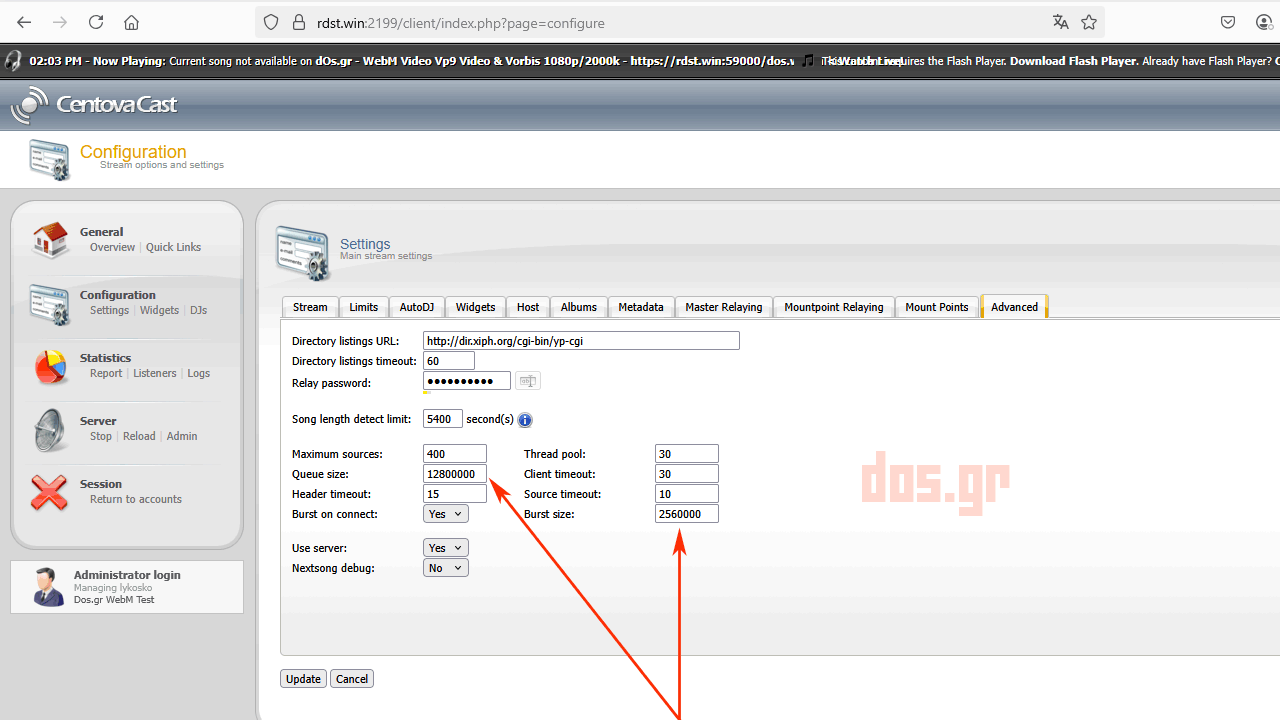
    → Icecast settings via Centova Cast panel
    
    Below shows configuration of basic parameters via Centova Cast panel, such as:
    
    Queue size: 12800000
    Burst size: 2560000
    
    Timeout values for Source/Client
    
    These values exactly match the icecast.xml used in the production implementation on webm.win
    
    Attached file:
    
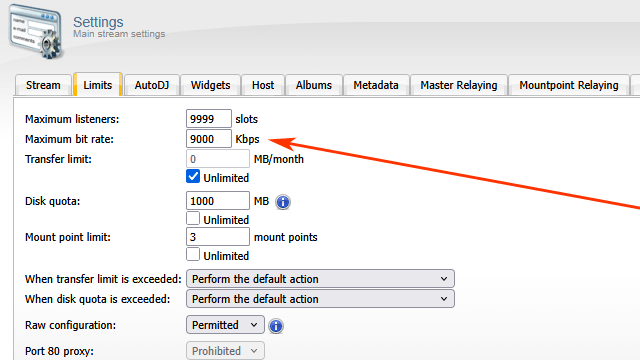
    Limits settings
    
    The image below shows basic restriction parameters, such as:
    
    Maximum Bitrate (9000 Kbps) (set high to prevent Centova from auto-stopping this stream—setting lower doesn't matter, as long as it's not lower than your video bitrate)
    
    Maximum listener number
    Disk quota & mount point limit
    
    Attached file:
    
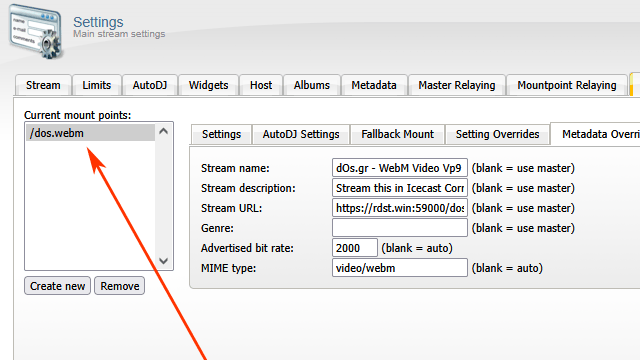
    Mount Point settings
    
    Settings for mount point /dos.webm on Icecast, such as:
    
    MIME type: video/webm
    Advertised bitrate: 2000 kbps
    Stream name & description
    Stream URL: rdst.win:59000/dos.webm
    
    Attached file:
    
    → Converting files to WebM/VP9
    
    For converting files to WebM/VP9, we chose the 2-pass encoding method with ffmpeg, as tests showed it achieves the best image quality relative to file size.
    
    Original videos were 4K, converted to 1920×1080 at constant 30fps.
    
    All videos used the exact same command for uniformity during broadcast and playback across browsers and devices. Audio bitrate was set to 192 kbps for excellent quality without excessive size.
    
    → Example conversion command (2-pass VP9 WebM)
    
    ffmpeg -y -i carlcox.mp4 -vf "scale=1920:1080,fps=30" -c:v libvpx-vp9 -b:v 2000k -g 15 -deadline good -cpu-used 0 -threads 16 -pass 1 -an -f webm -passlogfile ./ffmpeg2pass temp_pass1_output.webm
    
    ffmpeg -y -i carlcox.mp4 -vf "scale=1920:1080,fps=30" -c:v libvpx-vp9 -b:v 2000k -g 15 -deadline good -cpu-used 0 -threads 16 -pass 2 -c:a libvorbis -b:a 192k -ar 44100 output_1080p_best_quality_2000k.webm
    
    → Explanation of key parameters
    
    Parameter / Description
    -i carlcox.mp4          Original input file (MP4)
    -vf "scale=1920:1080,fps=30"    Output resolution and frame rate
    -c:v libvpx-vp9         Video codec VP9
    -b:v 2000k          Video bitrate 2000 kbps
    -g 15               Keyframe distance (GOP)—ideal for stable seeking
    -deadline good          Balance between quality and speed
    -cpu-used 0         Maximum quality (slower encoding)
    -threads 16         Using 16 CPU threads
    -pass 1 / -pass 2       First and second pass for optimized quality
    -an             Disable audio in the first pass (not needed)
    -c:a libvorbis          Vorbis codec for audio
    -b:a 192k           Audio bitrate 192 kbps
    -ar 44100           Audio frequency 44.1kHz
    -f webm             Output format WebM
    -passlogfile            File storing 1st pass information
    
    → Playlist creation & scheduled broadcast
    
    Broadcasting is done via Windows, using a simple input.txt playlist and ffmpeg command.
    
    Broadcast executed as a Windows service via FireDaemon for reliability.
    
    → Final notes
    This manual covers the entire process step-by-step:
    conversion, Icecast settings, scheduled broadcast in a production environment.
    
    From here... explore yourself!
    
    For professional support:
    dos.gr | [email protected]
    
  • webmwebm Member

    Also, here is an example of a working XML configuration file, taken directly from the actual server that is currently online and broadcasting:

    🎯 Live stream:
    https://rdst.win:59000/dos.webm
    Mirror: https://webm.win

    🧾 XML config file:
    https://dos.gr/forumdata/lyk/105icecast/icewebm.txt

    This configuration is being used right now to stream WebM/VP9 video via Icecast.

  • webmwebm Member

    Following up with some screenshots related to the current setup, posted separately for clarity.

    📸 Some screenshots from the live setup:

    Centova Cast interface (Icecast server):

    Windows server running FFmpeg (sending to Icecast):


Sign In or Register to comment.