

























New on LowEndTalk? Please Register and read our Community Rules.
All new Registrations are manually reviewed and approved, so a short delay after registration may occur before your account becomes active.
All new Registrations are manually reviewed and approved, so a short delay after registration may occur before your account becomes active.



Comments
It will

Novnc blinks even with the installed os.
So after installation is complete, you should set up your network manually (setup static ip, mask, gw) via nmtui (or any other option) and then ssh and forget about that blinking nightmare
Fun fact: Novnc doesn't blink in BIOS and doesn't blink in preinstalled Ubuntu. Just in Alma.
And about autopartitioning:
In my case, I should enter the partitioning section in Alma Anaconda and remove the preinstalled Ubuntu partitions.
Since I am already in this section, I created my perfect installation (excluding/home and the rest of the space on / etc).
PM sent. Please cancel the server WHMCS ID: 13334 and refund the money to the VPSSlim funds balance.
Thanks.
I've been trying to use the server I purchased for 15 days.
Support is slow and they don't have a solution on how to solve this.
There's no point in running a promotion if you can't deliver a product that works properly. There's a reinstallation panel that simply doesn't work.
I think I know why support reinstalls Ubuntu, and then you can’t reinstall it yourself: after each install Ubuntu configures the local OS to be the first boot entry, while PXE/network boot remains second, and the PC/BIOS/firmware (wrong) settings helping in that. Something about NVRAM. Thanks to ChatGPT I learned this. Running grub-install --removable after a fresh install can help, or you can fix the UEFI/BIOS boot order so network boot has priority (if you have working novnc). This needs further investigation.
https://chatgpt.com/share/68ad7ca5-3df0-8011-8884-60ae07a20709
About 30 minutes earlier, the server went offline. But I have noVNC (!), so checked and you know what? physical link on interface eno1 goes down, but the same on eno2 goes UP.
In my case, eno2 was in "auto" mode without any IP config.
So via blinking noVNC I was able to enter IP/mask/gw on eno2 and fix my iptables stuff for eno2.
But... All of these are just WOW.
Wow. Mine hasn't been up ever, since marked as "active".
Ok, steps:
sudo efibootmgrYou see a boot order, where fresh intalled Ubuntu on a first place and network cards/pxe on last place.
So without working VNC you have no chance to fix it via Bios, so boot in Ubuntu and then:
efibootmgr -o XXXX,YYYY,ZZZZ,etcwhere on a first places should be network/pxe, and installed Ubuntu - in the end.
Now reinstall works.
Hostslim/Vpsslim worst shit i ever bought. 24+24+48eur, wasted almost a month to diagnose their problems/novnc/etc. A bad experience is also an experience.
Never deal with this trash. Just gift your peso to homeless man.
If you need proofs - call me, i show you dialog with their "support".
Taken two a more pricey machines from other different guys and use it since without any problems or headache since first day.
His support is one of the worst.
There is a panel that doesn't work for dedicated management, and even getting the machine to work is a sacrifice.
Your control panel site https://clients.hostslim.eu is down for about one day long.
What happened?
Ralph, who owns the company, does tourism, and every now and then we can't resolve things with him.
It's back to normal now. I forgot to note on this thread.
1 of 3 servers left, two cancelled with total money loose because nothing works. Last still not works and ending soon. Nice service, super Slim
EasyDCIM and NoVNC panel often doesn't work.
After I got very angry, they paid more attention to me and resolved the issue. Now I can use it.
How?
They fixed noVNC?
I canceled my "broken one," so that's why I'm asking, just interested in how they resolved.
I am glad to hear we were able to help you. We had some problems with 15% of the "special deal" systems their NOVNC. Because they were older motherboards sometimes this caused trouble. We only noticed this after the servers were setup and ordered, as they were pre-checked for working IPMI and that was all fine. But since our system uses proxy-ipmi it somehow caused a problem. We are very sorry for the clients that were affected and offered either replacement servers or a refund. No bad intentions from our side. Just an unfortunate event of the NOVNC/IPMI Tool on the somewhat older v2 systems. On all other systems it works just fine.
Want to know if IPMI access is granted? NoVNC/VNC only?
Yes
Whether it works or not is a gamble though if its an older system and you may or may not be lucky, regardless of what the host says that only a few systems were troublesome
These servers have been sold out as well. New offer has been posted.
@VPSSLIM would be nice if u answer tickets.....
Do you have an open ticket ID? Please send me a PM.
I bought a dedicated server almost two months ago from hostslim, and IPv6 still isn't working. I've submitted several support tickets, but they haven't been processed or responded to.
Be cautious about buying from this host provider.
@VPSSLIM if you can find the time, could you check ticket #683870?
Server is offline for 35 days in a row already.
And maybe you could handle tickets #499152,#522133,#901392,#444477
HostSlim Manual System Installation
I bought a server with a dual X79 configuration myself. Installing the system through the HostSlim control panel failed (it seems the motherboard is too old, causing the installation to be unsuccessful??). Here is a system installation tutorial compiled based on everyone's practices for your reference.
Step 1: Upload a Custom Image
https://laotzu.ftp.acc.umu.se/mirror/debian-cd/13.4.0/amd64/iso-dvd/debian-13.4.0-amd64-DVD-1.iso
https://cdimage.debian.org/debian-cd/current/amd64/iso-dvd/debian-13.4.0-amd64-DVD-1.iso)
Waiting for ISO upload (about 1 day?)
Mount ISO
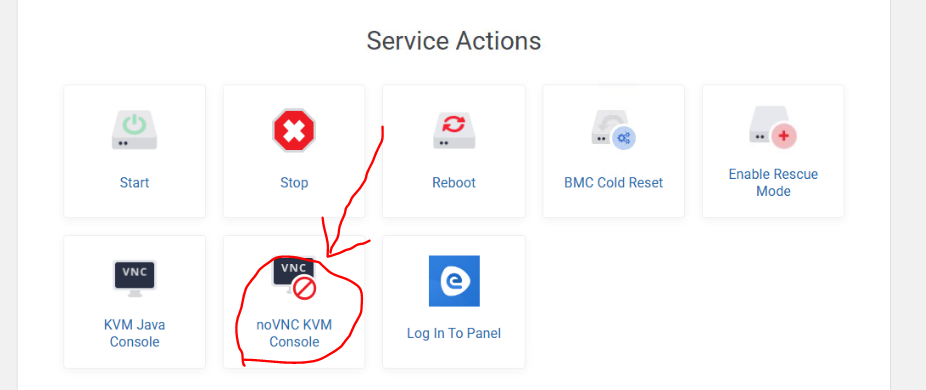


Open noVNC
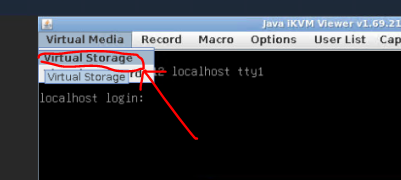
noVNC window top left corner Virtual Media--Virtual Storage
Select CDROM & ISO -- ISO File -- Open
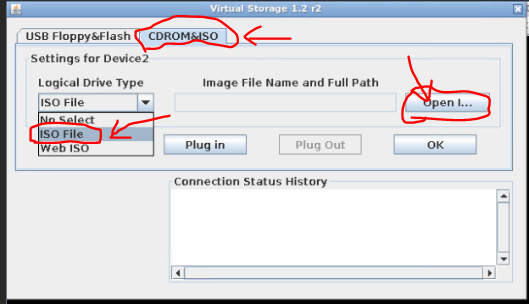
Select client_iso, find the ISO folder you uploaded, the name is the one you gave in the previous step, it may take a day to be visible.
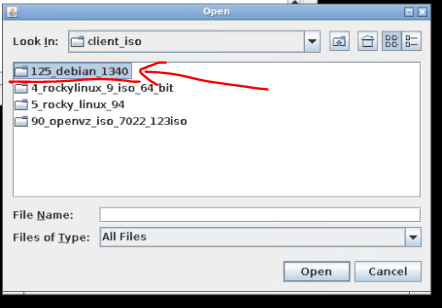
Select the ISO and open it

Pluy in--OK

Restart the server
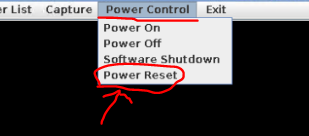
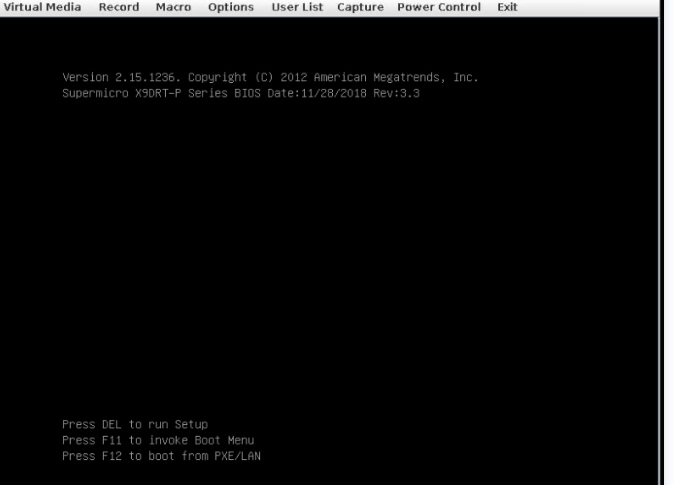
Step 2: Enter the BIOS to change the boot order
Do not close the noVNC interface
After just restarting the server, when this page appears, you need to press the delete key multiple times before you can enter the BIOS interface.
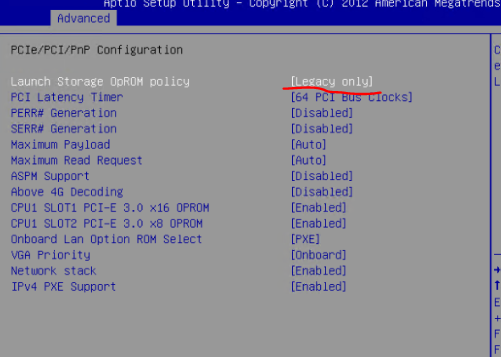
Advanced--PCIe/PCI/Pnp Configuration--

Change to Legacy only
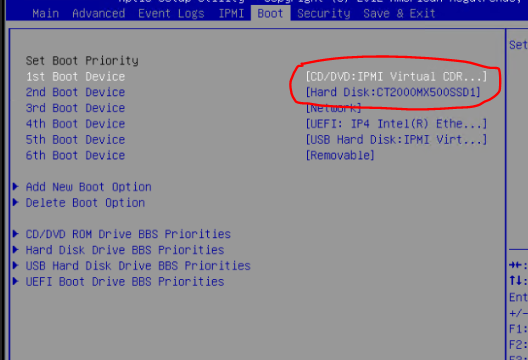
Change the boot order, choose CD/DVD first, then hard drive second (I have already installed it here, so the hard drive model will appear; for you, it should only show 'hard drive'), the remaining order can be arbitrary.
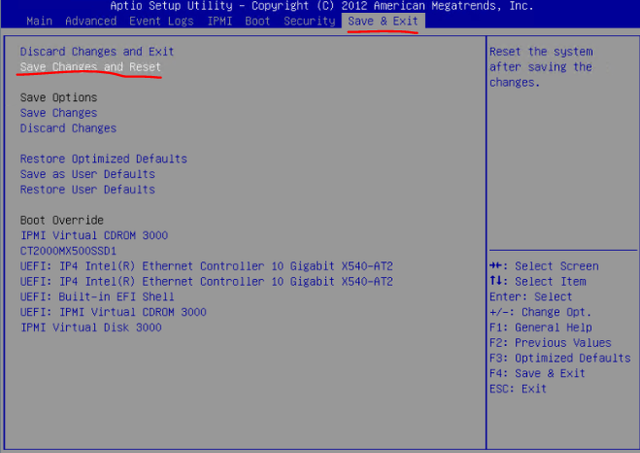
Save BIOS settings
Step 3: Install the Debian system
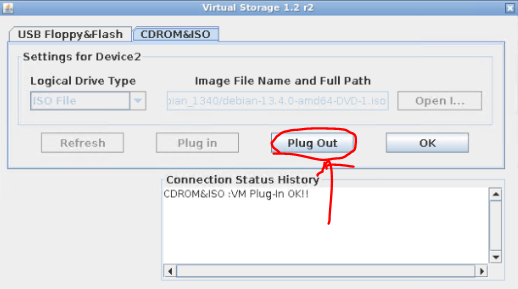
Step 4: After installing the system, the ISO image pops up
After installing Debian, don't forget to eject your ISO image, otherwise you'll have to reboot again.
Step 5: Configure the network
After rebooting, log in to Debian 13 via noVNC, open the network in the upper right corner, and enable and configure eno2** (it is recommended to perform this operation after installing a desktop environment, because at this time your SSH cannot log in) **
Fill in the following options
ip:Enter the IP in your control panel
Subnet mask:255.255.255.192(If your IP is 193.3.189.x)
Firewall:193.3.189.129(If your IP is 193.3.189.x)
DNS:114.114.114.114
Step Six: Install the system you want
At this time, your server network should already be configured, and you can log in via SSH.
You can install any system you want via SSH at any time (of course, not a desktop Linux system).
You can refer to: https://github.com/bin456789/reinstall/blob/main/README.en.md
I forgot to mention, at this point you probably don’t have the wget and curl commands yet.
Execute via ssh:
su root
(your root password)
change sources.list:
nano /etc/apt/sources.list
Insert the following lines:
deb http://deb.debian.org/debian/ trixie main contrib non-free non-free-firmware
deb-src http://deb.debian.org/debian/ trixie main contrib non-free non-free-firmware
Update the package source index:
sudo apt update (or su apt update)
Install wget:
sudo apt install -y wget (or su apt install -y wget)
Top right corner network

A warning to anyone considering HostSlim
Based on my personal experience, I strongly recommend avoiding HostSlim. I paid for a VPS hosted in the Netherlands, but the server was repeatedly slow, unstable, and completely unreachable. It would sometimes work for only a couple of days and then remain offline for days or even weeks. At one point, the VPS had no working IPv4 address at all. This made the service effectively unusable.
Support was equally disappointing. My ticket history documents repeated reports of downtime from March through July 2026. Replies were often extremely brief, failed to resolve the underlying problem, and in one case I waited approximately a week for a response. Even HostSlim’s own system acknowledged that the ticket had been delayed.
After paying for a month in which I received, at most, about a week of usable service, I asked to cancel and requested a €24 refund. The service was terminated, but the refund was not issued. My separate high-priority billing ticket requesting the refund has remained unanswered since August 2, 2026.
In my experience, HostSlim provided an unreliable product, inadequate technical support, and no meaningful response to a legitimate refund request. Think very carefully before trusting them with a server or any service that needs dependable uptime.