























All new Registrations are manually reviewed and approved, so a short delay after registration may occur before your account becomes active.
Updated Guide: Windows Server Installation on Dedicated & VPS without KVM/iLO or IPMI

Welcome to this updated step-by-step guide for installing Windows Server on dedicated servers or VPS, both with virtualization enabled and disabled. You will also find a guide on how to install Windows on devices with 4GB of RAM.
Install Windows Server on any VPS or Dedicated Server without KVM/iLO or IPMI (thread closed/deprecated)
The tutorial is divided into two sections: one on installing Windows using QEMU, and another on a quick and simple installation using a pre-configured Windows image compressed in .zst format.
TESTED IN SOME VPS AND DEDICATED SERVERS LIKE
✅ OVH VPS
✅ OVH DEDICATED SERVER
✅ STRATO VPS
✅ HETZNER VPS
✅ NETCUP VPS/ROOT
✅ LEASEWEB VPS
DEDICATED SERVERS OR VPS WITH MORE THAN 8GB OF RAM AND VIRTUALIZATION ENABLED

- Perform a Clean Installation of Ubuntu on Your VPS/Dedicated Server
- Reboot into Rescue Mode and log in using your ROOT username and password. (Alternatively, you can use sudo -i to obtain ROOT privileges.)
- Verify if virtualization is enabled on your CPU.
RUN A YABS
wget -qO- yabs.sh | bash -s -- -b -f -d -i -n -r
If your CPU has enabled virtualization you will see:
VM-x/AMD-V : ✅ Enabled
If not
VM-x/AMD-V : ❌ Disabled
CHECK WHETHER YOUR SERVER IS USING UEFI OR LEGACY BIOS
apt install efibootmgr
efibootmgr
If your system supports UEFI, it will display different variables. If not, you will see a message saying ‘EFI variables are not supported.’
IF YOUR SYSTEM DOES SUPPORT UEFI, PROCEED TO INSTALL OVMF.
apt-get install ovmf
cp /usr/share/ovmf/OVMF.fd /tmp
INSTALL QEMU-SYSTEM.
apt-get install qemu-system -y
cp /usr/bin/qemu-system-x86_64 /tmp
DELETE THE PARTITION TABLES.
dd if=/dev/zero of=/dev/vda bs=1M count=1
USE RAM MEMORY AS A TEMPORARY DISK TO ALLOCATE .iso FILES.
mount -t tmpfs -o size=8000m tmpfs /mnt
wget -O /mnt/windows.iso https://DIRECT-WINDOWS-ISO-LINK-HERE.iso
wget -O /mnt/virtio-win.iso https://fedorapeople.org/groups/virt/virtio-win/direct-downloads/latest-virtio/virtio-win.iso
RUN QEMU (MAKE SURE TO EDIT THE PARTITION NAME). THEN, PASTE THE CODE AND PRESS "ENTER" TWICE TO START (REMEMBER, YOU NEED TO HAVE VNC VIEWER INSTALLED ON YOUR PC TO CONTROL THE QEMU ENVIRONMENT.)
RUN QEMU (UEFI VIRTUAL VPS)
/tmp/qemu-system-x86_64 \
  -m 1G \
  -cpu host \
  -enable-kvm \
  -bios /tmp/OVMF.fd \
  -boot order=d \
  -drive file=/mnt/windows.iso,media=cdrom \
  -drive file=/mnt/virtio-win.iso,media=cdrom \
  -drive file=/dev/vda,format=raw,if=virtio \
  -device usb-ehci,id=usb,bus=pci.0,addr=0x4 \
  -device usb-tablet \
  -net user,hostfwd=tcp::3389-:3389 \
  -net nic,model=virtio \
  -vnc :0 \
RUN QEMU (LEGACY VIRTUAL VPS)
/tmp/qemu-system-x86_64 \
  -m 1G \
  -cpu host \
  -enable-kvm \
  -boot order=d \
  -drive file=/mnt/windows.iso,media=cdrom \
  -drive file=/mnt/virtio-win.iso,media=cdrom \
  -drive file=/dev/vda,format=raw,if=virtio \
  -device usb-ehci,id=usb,bus=pci.0,addr=0x4 \
  -device usb-tablet \
  -net user,hostfwd=tcp::3389-:3389 \
  -net nic,model=virtio \
  -vnc :0 \
RUN QEMU (UEFI DEDICATED SERVER)
/tmp/qemu-system-x86_64 \
  -m 1G \
  -cpu host \
  -enable-kvm \
  -bios /tmp/OVMF.fd \
  -boot order=d \
  -drive file=/mnt/windows.iso,media=cdrom \
  -drive file=/dev/sda,format=raw \
  -device usb-ehci,id=usb,bus=pci.0,addr=0x4 \
  -device usb-tablet \
  -net user,hostfwd=tcp::3389-:3389 \
  -net nic \
  -vnc :0 \
RUN QEMU (LEGACY DEDICATED SERVER)
/tmp/qemu-system-x86_64 \
  -m 1G \
  -cpu host \
  -enable-kvm \
  -boot order=d \
  -drive file=/mnt/windows.iso,media=cdrom \
  -drive file=/mnt/virtio-win.iso,media=cdrom \
  -drive file=/dev/sda,format=raw \
  -device usb-ehci,id=usb,bus=pci.0,addr=0x4 \
  -device usb-tablet \
  -net user,hostfwd=tcp::3389-:3389 \
  -net nic \
  -vnc :0 \
NOW, IN VNC VIEWER, ENTER THE IP ADDRESS OF YOUR SERVER AND USE ‘0’ AS THE PORT.

FOR VPS WITH VIRTUAL DRIVERS, CLICK ON ‘LOAD DRIVER’ FROM THE MOUNTED VIRTIO-WIN.ISO, THEN NAVIGATE TO "AMD64/YOUR-WINDOWS-VERSION".

ONCE WINDOWS SERVER IS INSTALLED, OPEN ‘SERVER MANAGER’ AND ENABLE ‘REMOTE DESKTOP.’ INSTALL THE VIRTUAL DRIVERS FROM THE MOUNTED .ISO. IF YOU NEED ANY ADDITIONAL DRIVERS FOR YOUR SERVER, DOWNLOAD AND INSTALL THEM.

NOW, GO TO YOUR PROVIDER’S DASHBOARD AND RESTART YOUR SERVER OR FORCE WITH “echo b > /proc/sysrq-trigger” AFTER THAT, CONNECT VIA REMOTE DESKTOP.
echo b > /proc/sysrq-trigger

DEDICATED SERVERS OR VPS WITH 4GB OF RAM AND VIRTUALIZATION ENABLED
- Perform a Clean Installation of Ubuntu on Your VPS/Dedicated Server.
- Reboot into Rescue Mode and log in using your ROOT username and password. (Alternatively, you can use sudo -i to obtain ROOT privileges.)
❗IDENTIFY THE PARTITION NAME USING THE LSBLK COMMAND (IN MY CASE, IT WAS /dev/vda.)
lsblk
cgdisk /dev/sda
DELETE (ALL PARTITIONS) ➤ WRITE ➤ QUITE
Type "reboot" (wait 5 minutes and connect again)

fdisk /dev/sda
type "M" enter protective/hybrid MBR
type "t" change a partition type
Hex code (type L to list all codes): type "7"
"Changed type of partition 'GPT' to 'HPFS/NTFS/exFAT'."
type "w" to save
type "q" to exit

lsblk
sda 8:0 0 238,5G 0 disk
└─sda1 8:1 0 238,5G 0 part

fdisk /dev/sda
type "d" to delete
type "n" to create a new one
type "p" - Primary Partition (firs sector - default)
type "+25G" to create a 25GB partition
WE’VE CREATED OUR FIRST PARTITION; NOW, WE NEED TO CREATE A SECOND ONE WHERE WE WILL STORE THE DOWNLOADED FILES.
type "n" to create a new one
default-default-default-default

sda      8:0    0 238,5G  0 disk
├─sda1   8:1    0    25G  0 part
└─sda2   8:2    0 213,5G  0 part

type "w" to save the changes
NOW THAT THE SECOND PARTITION IS READY, YOU NEED TO FORMAT AND MOUNT IT (ONLY THE SECOND ONE: /dev/sda2).
mkfs.ext4 /dev/sda2
mount /dev/sda2 /mnt
lsblk
sda      8:0    0 238,5G  0 disk
├─sda1   8:1    0    25G  0 part
└─sda2   8:2    0 213,5G  0 part /mnt
CHECK WHETHER YOUR SERVER IS USING UEFI OR LEGACY BIOS.
apt install efibootmgr
efibootmgr
If your system supports UEFI, it will display different variables. If not, you will see a message saying ‘EFI variables are not supported.’
IF YOUR SYSTEM DOES SUPPORT UEFI, PROCEED TO INSTALL OVMF.
apt-get install ovmf
cp /usr/share/ovmf/OVMF.fd /tmp
INSTALL QEMU-SYSTEM
apt-get install qemu-system -y
cp /usr/bin/qemu-system-x86_64 /tmp
wget -O /mnt/windows.iso https://DIRECT-WINDOWS-ISO-LINK-HERE.iso
wget -O /mnt/virtio-win.iso https://fedorapeople.org/groups/virt/virtio-win/direct-downloads/latest-virtio/virtio-win.iso
RUN QEMU (MAKE SURE TO EDIT THE PARTITION NAME). THEN, PASTE THE CODE AND PRESS "ENTER" TWICE TO START (REMEMBER, YOU NEED TO HAVE VNC VIEWER INSTALLED ON YOUR PC TO CONTROL THE QEMU ENVIRONMENT.)
RUN QEMU (UEFI VIRTUAL VPS)
/tmp/qemu-system-x86_64 \
  -m 1G \
  -cpu host \
  -enable-kvm \
  -bios /tmp/OVMF.fd \
  -boot order=d \
  -drive file=/mnt/windows.iso,media=cdrom \
  -drive file=/mnt/virtio-win.iso,media=cdrom \
  -drive file=/dev/vda,format=raw,if=virtio \
  -device usb-ehci,id=usb,bus=pci.0,addr=0x4 \
  -device usb-tablet \
  -net user,hostfwd=tcp::3389-:3389 \
  -net nic,model=virtio \
  -vnc :0 \
RUN QEMU (LEGACY VIRTUAL VPS)
/tmp/qemu-system-x86_64 \
  -m 1G \
  -cpu host \
  -enable-kvm \
  -boot order=d \
  -drive file=/mnt/windows.iso,media=cdrom \
  -drive file=/mnt/virtio-win.iso,media=cdrom \
  -drive file=/dev/vda,format=raw,if=virtio \
  -device usb-ehci,id=usb,bus=pci.0,addr=0x4 \
  -device usb-tablet \
  -net user,hostfwd=tcp::3389-:3389 \
  -net nic,model=virtio \
  -vnc :0 \
RUN QEMU (UEFI DEDICATED SERVER)
/tmp/qemu-system-x86_64 \
  -m 1G \
  -cpu host \
  -enable-kvm \
  -bios /tmp/OVMF.fd \
  -boot order=d \
  -drive file=/mnt/windows.iso,media=cdrom \
  -drive file=/dev/sda,format=raw \
  -device usb-ehci,id=usb,bus=pci.0,addr=0x4 \
  -device usb-tablet \
  -net user,hostfwd=tcp::3389-:3389 \
  -net nic \
  -vnc :0 \
RUN QEMU (LEGACY DEDICATED SERVER)
/tmp/qemu-system-x86_64 \
  -m 1G \
  -cpu host \
  -enable-kvm \
  -boot order=d \
  -drive file=/mnt/windows.iso,media=cdrom \
  -drive file=/mnt/virtio-win.iso,media=cdrom \
  -drive file=/dev/sda,format=raw \
  -device usb-ehci,id=usb,bus=pci.0,addr=0x4 \
  -device usb-tablet \
  -net user,hostfwd=tcp::3389-:3389 \
  -net nic \
  -vnc :0 \
NOW, IN VNC VIEWER, ENTER THE IP ADDRESS OF YOUR SERVER AND USE ‘0’ AS THE PORT.
FOR VPS WITH VIRTUAL DRIVERS, CLICK ON ‘LOAD DRIVER’ FROM THE MOUNTED VIRTIO-WIN.ISO, THEN NAVIGATE TO "AMD64/YOUR-WINDOWS-VERSION".
ONCE WINDOWS SERVER IS INSTALLED, OPEN ‘SERVER MANAGER’ AND ENABLE ‘REMOTE DESKTOP.’ INSTALL THE VIRTUAL DRIVERS FROM THE MOUNTED .iso. IF YOU NEED ANY ADDITIONAL DRIVERS FOR YOUR SERVER, DOWNLOAD AND INSTALL THEM.
NOW, GO TO YOUR PROVIDER’S DASHBOARD AND RESTART YOUR SERVER OR FORCE WITH “echo b > /proc/sysrq-trigger” AFTER THAT, CONNECT VIA REMOTE DESKTOP.
echo b > /proc/sysrq-trigger

INSTALL WINDOWS SERVER ON DEDICATED SERVER OR VPS WITH CPU VIRTUALIZATION DISABLED
✅ ALTHOUGH THIS METHOD IS FOCUSED ON SYSTEMS WITH VIRTUALIZATION DISABLED, IT CAN ALSO BE USED ON SYSTEMS WITH VIRTUALIZATION ENABLED.
- Perform a Clean Installation of Ubuntu on Your VPS/Dedicated Server.
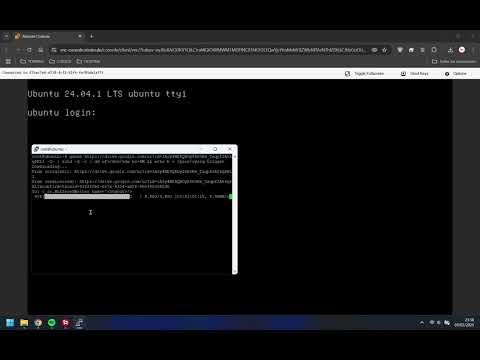
- Install "pip" and "gdown".
sudo apt update && sudo apt install python3-pip -y
pip install --upgrade gdown --break-system-packages
✅ CHECK WHETHER YOUR SERVER IS USING UEFI OR LEGACY BIOS.
apt install efibootmgr
efibootmgr
If your system supports UEFI, it will display different variables. If not, you will see a message saying ‘EFI variables are not supported.’
✅ REMEMBER TO EDIT THE NAME OF YOUR PARTITION, DEPENDING ON YOUR SYSTEM IT CAN BE (VDA,SDA OR NVME0N1/NVME1N1).
❗IDENTIFY THE PARTITION NAME USING THE LSBLK COMMAND (IN MY CASE, IT WAS /dev/vda.)
lsblk
✅ WINDOWS SERVER 2022 (VPS – UEFI)
gdown https://drive.google.com/uc?id=1QVvSv_AYguiiIFQUnXHarIfQEGee8q5Z -O- | zstd -d -c | dd of=/dev/vda bs=4M && echo b > /proc/sysrq-trigger
✅ WINDOWS SERVER 2022 (VPS – LEGACY BIOS)
gdown https://drive.google.com/uc?id=1j0UwHVvRTqXCZrqwM1qs9onAtQxvFM70 -O- | zstd -d -c | dd of=/dev/vda bs=4M && echo b > /proc/sysrq-trigger
✅ WINDOWS SERVER 2022 (DEDICATED SERVER – UEFI)
gdown https://drive.google.com/uc?id=1Qr7nxryckwDvBhmkY6JrZjDs1KSOTmfJ -O- | zstd -d -c | dd of=/dev/sda bs=4M && echo b > /proc/sysrq-trigger
✅ WINDOWS SERVER 2022 (DEDICATED SERVER – LEGACY BIOS)
gdown https://drive.google.com/uc?id=1GVJw_arB1K-2kPnd1y5jUh1ApnM_fzPX -O- | zstd -d -c | dd of=/dev/sda bs=4M && echo b > /proc/sysrq-trigger
✅ WINDOWS SERVER 2025 (VPS – UEFI)
gdown https://drive.google.com/uc?id=1ZmayJ0X5DqgmY6CRJXHEHQ_G8Ri8IlUf -O- | zstd -d -c | dd of=/dev/vda bs=4M && echo b > /proc/sysrq-trigger
✅ WINDOWS SERVER 2025 (VPS – LEGACY BIOS)
gdown https://drive.google.com/uc?id=1Azy4NE9QBOyZ6P0Bv_Taqpf2A8kqPKLI -O- | zstd -d -c | dd of=/dev/vda bs=4M && echo b > /proc/sysrq-trigger
✅ WINDOWS SERVER 2025 (DEDICATED SERVER – UEFI)
gdown https://drive.google.com/uc?id=1BrPV6cWbXgQ50lWN4-N29DFhc-ZN3yQc -O- | zstd -d -c | dd of=/dev/sda bs=4M && echo b > /proc/sysrq-trigger
✅ WINDOWS SERVER 2025 (DEDICATED SERVER – LEGACY BIOS)
gdown https://drive.google.com/uc?id=1n7EO669NTcgRjx54ixHp7K9ISzKhpHnH -O- | zstd -d -c | dd of=/dev/sda bs=4M && echo b > /proc/sysrq-trigger
✅ CONNECT VIA REMOTE DESKTOP USING THE FOLLOWING CREDENTIALS:
USERNAME: Administrator
PASSWORD: Vpssh.xyz
TROUBLESHOOTING
⛔ IF YOUR HARD DISK IS SET TO RAID – If your hard disks are in RAID, you need to wipe the partition table of both disks and add them to the QEMU script.
EXAMPLE: You have 2 disks (nvme1n1 and nvme0n1).
Delete the partition tables of both disks.
dd if=/dev/zero of=/dev/nvme1n1 bs=1M count=1
dd if=/dev/zero of=/dev/nvme0n1 bs=1M count=1
Add both disks to the QEMU script.
-drive file=/dev/nvme1n1,format=raw \
-drive file=/dev/nvme0n1,format=raw \
During the Windows installation, create the partition for the operating system, then create and format the other partitions and disks as needed.
⛔ ACCOUNT BLOQUED - “As a security precaution, the user account has been locked out because there were too many logon attempts or password change attempts. Wait a while before trying again, or contact your system administrator or technical support.”
- Reboot server and connect
- Navigate to Group Policy Editor under Settings
- Locate Computer Configuration
- Navigate to Windows Settings
- Access Security Settings
- Find Account Policies
- Explore the Account Lockout Policy
- Adjust Account Lockout Threshold

⭐ JOIN MY TELEGRAM GROUP!
Windows without KVM/iLO or IPMI
https://t.me/+-nZfmEQSlfJkM2Q5
If you found this thread helpful, you can support me by making a donation. Your contribution is greatly appreciated!
USDT Network ⚡ TRON: TPKZiQmmyzrfn9nGR9zyLJtC7qWQfzmykF
USDT Network ⚡ BSC BNB Smart Chain (BEP20): 0x133879bb1968563a5d72df6f5621d2df98e7ef76
BTC Network ⚡ BSC BNB Smart Chain (BEP20): 0x133879bb1968563a5d72df6f5621d2df98e7ef76



Comments
Keep Up the Great Work
Thank you, that is rather impressive.
I'll probably never use this but it looks well written and researched.
Also, I never knew windows users have to do SO MUCH to get their OS to work. I just click one button for debian or alma and boom I'm in