



























All new Registrations are manually reviewed and approved, so a short delay after registration may occur before your account becomes active.
【inst.sh】how to reinstall linux to gui with desktop ISOs (no plan for windows isos yet)

Nowadays, Linux desktop distributions usually use installation framework toolkits to achieve "live install" functionality. Common install frameworks include: Ubiquity for Ubuntu, archinstall for Arch Linux, Calamares for Manjaro, The resulting ISO images output by those toolkits employs live/read-only media, such as memory (RAM) or CD-ROM, and leverage technologies like SquashFS and underlay filesystems to launch the operating system in a fully functional desktop environment, This approach provides user a convenient way to try out these desktop ISOs before—or even without—actually installing them onto a hard disk.
inst.sh can now reinstall Linux from those live desktop distributions to the hard disk, by processing the ISO in a way that transforms its contents into a hard disk installation. --------- It first partitions the disk then downloads the ISO,unzips it, locates the SquashFS images that hold the compressed, layered root filesystem tree,and then extracts these to the hard disk to create a working Linux rootfs. --------- In short, the main job is to "transform everything" from the ISO so that it fits as a real installation on the hard disk. That’s why this process is called "transinstall".
Compared with "ddinstall" and other reinstall paradigms which are gracefully oriented towards
"1,onliner-cmdline, 2,on-the-fly online extract and install, 3,using non-disk medium as both the source and target" by `inst.sh`,
in fact, "transinstall" can replace many of the above reinstall paradigms offered by `inst.sh`:
because you can do more and many things on disks, though not as gracefully compared with them.
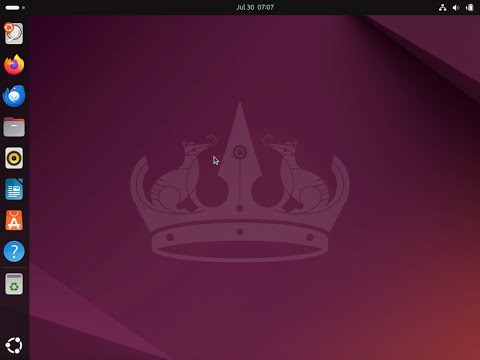
let us take ubuntu 24 iso for a example, after install ,you will get a ubuntu 24 gnome desktop on disk
firstly, run in the cmdline of a linux:
wget -qO- inst.sh|bash -s - -t https://releases.ubuntu.com/24.04.2/ubuntu-24.04.2-desktop-amd64.iso

(wait install happen, after install done, use below user/inst.sh to login, this is a sudoer user)
when switch to debian desktop iso, please choose the live iso,debian supports two types of isos, one for debsource install (netinstall cd, dvd), one for live install(mainly fro desktop), debsource ISOs build the OS from packages during install, while live ISOs use a compressed, pre-built root filesystem that runs directly from the media as explained above like ubuntu 24 iso
enjoy yourself !! and i am sorry i have no plan for windows isos currently yet
command:
wget -qO- inst.sh|bash -s - -t https://releases.ubuntu.com/24.04.2/ubuntu-24.04.2-desktop-amd64.iso
repo:
https://github.com/minlearn/inst
video:



Comments
Thank You, it's very clear.
thank you